Using RStudio
While base R provides the tools necessary to analyze complex datasets and perform most necessary functions. Utilizing R can be far easier through the use of RStudio.
This guide goes through the basics of the RStudio software.
What is RStudio?
-
RStudio is an Integrated Development Environment (IDE). It allows for individuals to run various coding languages; predominantly R.
-
RStudio Provides More Resources Than Base R. Syntax Highlighting, Debugging Assistance, and Script Visualization are all offered in an IDE.
Downloading RStudio
You can Download RStudio for Windows, MacOS, and Other Softwares using the installer
Navigating the RStudio Environment
There are Four Sections of the RStudio IDE that we will cover in this guide
The Source Pane
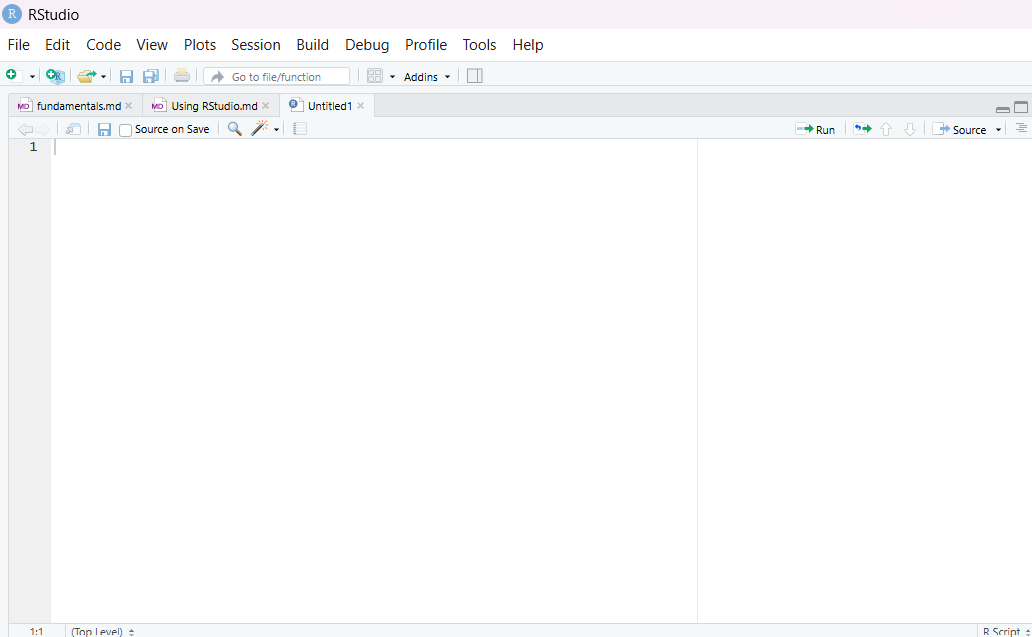
The Source Pane (top left) is where you write and edit scripts. This is where most of your work will happen when developing reproducible code.
Key features of the Source Pane:
- Write and save scripts instead of running one-off commands
- Run code line-by-line or in chunks using
Ctrl + Enter(Windows) orCmd + Enter(Mac) - Syntax highlighting helps identify errors before running code
- Code completion and suggestions speed up development
- Multiple tabs allow you to work across several files at once
- Foldable code sections help organize longer scripts
Example:
# This code is written in the Source Pane
x <- 10
y <- 5
x + y
The Console
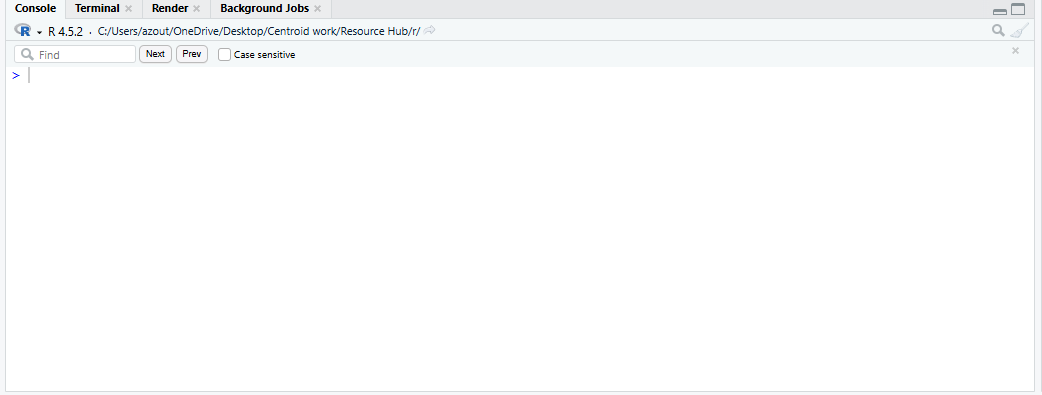
The Console is where 1 line code is written to run single commands.
The > arrow signifies the line that you will write code on
> This is where you will write your commands
The + symbol tells you your command is incomplete
> print
+ ("This is where you will need to finish your command")
The Up & Down arrows will allow you to move through previously ran commands
The console is also home to our Terminal. The terminal operates as a Shell that allows us to interact with our computers File System and git.
We focus more on how to use the terminal in our Unix, and Git guides. Check them out!
The terminal is especially useful when executing commands to Make new Folders, Change Working Directories and Connect With Github Services.
mkdir ("New_Folder")

cd ("path/to/your/desired/folder")
The Environment
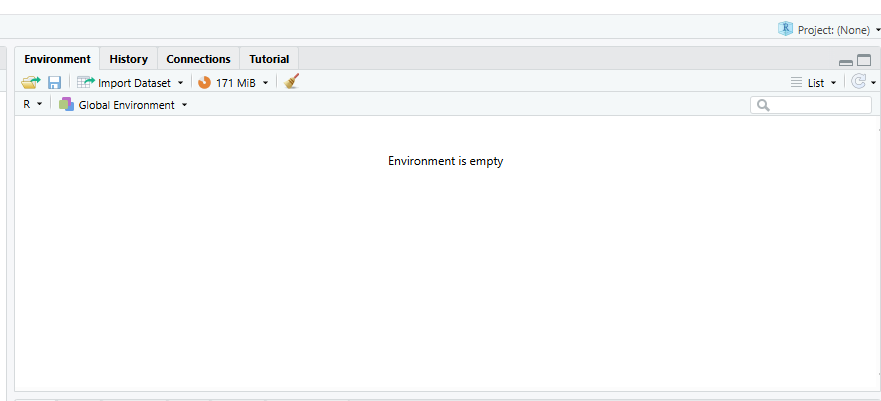
The Environment, located at the top right is where all of our objects will be stored.
This is where any Files, Variables, and Databases we are using will be stored.
Stored_String <- "This variable will be stored in our environment"

read_csv("/This/will/store/in/our/environment.csv")
The environment provides us with information about the amount of Rows, Columns, and Objects in our environments items.
We can also View and Interact with these elements in the environment.
If we want to view and access previously ran code, we can do so with the History Tab.
Outputs
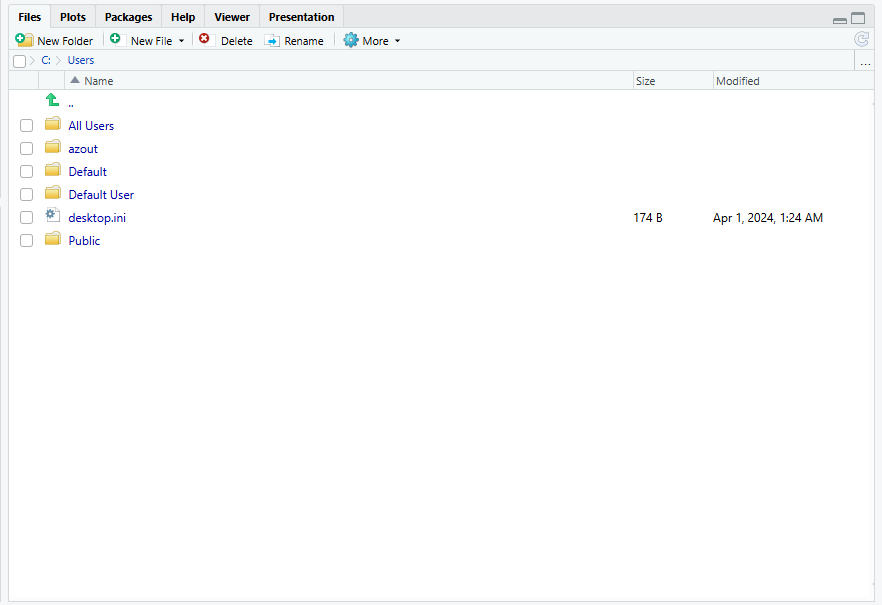
The Output Window is located at the bottom right of our IDE, it contains tools to navigate your Systems Directory and manage your coding outputs:
-
The Files Folder Houses Your System Directory You can create and manage new files, and navigate through your file tree.
-
View Graphs and Other Plots That you have run in your script. You can export these as images.
-
Access a List of Installed r Packages that you can add to your code, giving you access to new commands that will help you meet your goals.
-
Search Commands and Functions, where it will provide you with examples and explainations on how to usethem.
Creating Projects
One of the benefits of RStudio is the ability to create Projects. Projects are essentially a temporary working directory that allow you to organize and manage files for something that you are working on. Creating projects in RStudio is easy but is also heavily beneficial for data organization.
Projects are also useful when using Github. With projects, you can copy a url from a github repository and use it to read all files within that repository to your own RStudio session, allowing you to easily collaborate on projects.
- Step One: Click File in the top left corner, then new project.
- Step Two: If you want to create a project from scratch, click New Directory. If you are using a project from github, click Version Control
- Independent Projects: Click on New Project, then assign your New Project a Directory Name and select where you want your project to be located within your file tree. Press create project and then you will be all set!
- Version Control: Click on git, paste your repository URL from github, then assign a name and select where you would like your new proejct to be located within your file system.
NOTE: Do not create projects within projects. This will only lead to future problems.
Next Steps
RStudio offers an interactive environment that allows you to view the products of your code while you’re making scripts. Next, we will look at how we can use R/RStudio to read in and work with data.